
Customizing compute with looper's nested template system
Introduction
Section titled “Introduction”Looper builds job scripts using a nested template system, which consists of an inner and outer template. The inner template, called the command template, generates the individual commands to execute. The outer template, known as the submission template, wraps these commands in environment-handling code. This nested approach separates the computing environment from the pipeline, enhancing portability.
This more advanced guide assumes you're already familiar with the "configuring cluster computing" chapter of the basic tutorial. We will now explain the nested templates in more detail and then explain how you can customize submission templates to fit just about any computing scenario.
Why use nested templates?
Section titled “Why use nested templates?”Looper’s nested templates are a reflection of its modular design philosophy, aimed at separation of concerns. The system distinguishes between how to run a pipeline and how to configure the environment where it runs. These tasks are done by different people because the pipeline author is not necessarily the same as the pipeline user.
- The pipeline author designs how the pipeline runs, but does not know the user's computing environment.
- The user knows their environment well, but may not be familiar with the pipeline's specifics.
This separation addresses a common frustration with pipelines that hard-code job submission mechanisms, making them difficult to adapt to different environments. By clearly separating the configuration of pipeline execution from the environment setup, looper allows both roles to operate independently.
Command vs Submission Templates
Section titled “Command vs Submission Templates”The command template, written by the pipeline author, is specified in the pipeline interface file. Meanwhile, the pipeline user defines the outer submission template using submission templates (via divvy, more on that in a moment). This setup offers several benefits:
- Commands can be executed in any computing environment by simply switching the submission template.
- The submission template can handle various environment parameters, such as containers.
- Each submission template only needs to be defined once per environment, making it reusable across multiple pipelines.
- The universal submission template can be managed by dedicated submission software.
- Pipeline authors can focus solely on pipeline design, without worrying about environment configuration.
Template examples
Section titled “Template examples”We've seen examples of two templates in the previous tutorials, but to briefly remind you:
The command template
Section titled “The command template”The command template is specified by the pipeline in the pipeline interface. A basic command template might look like this:
pipeline_name: count_linessample_interface: command_template: > pipeline/count_lines.sh {sample.file_path}The command template provides the command and should be written by the pipeline author.
The submission template
Section titled “The submission template”As a user, the submission template is more relevant -- it tells the computer how, where, and when to execute the command. To submit commands to a cluster, we simply need to add some more information around the command above, specifying things like memory use, job name, etc. It may be tempting to add these details directly to the command template. This would work; however, this would restrict the pipeline to only running in that way, since the submission code would now be tightly coupled to the command code. Instead, looper retains flexibility by introducing a second template layer, the submission template. A submission template can be as simple or complex as required.
For, example, a basic submission template to run in a local computing environment might look like this:
#! /usr/bin/bash
{CODE}
The {CODE} variable is populated by the populated result of the command template -- that's what makes the templates nested. This example does nothing but pass the command through. A more complicated template could submit a job to a SLURM cluster:
#!/bin/bash#SBATCH --job-name='{JOBNAME}'#SBATCH --output='{LOGFILE}'#SBATCH --mem='{MEM}'#SBATCH --cpus-per-task='{CORES}'#SBATCH --time='{TIME}'echo 'Compute node:' `hostname`echo 'Start time:' `date +'%Y-%m-%d %T'`
{PRE_COMMAND}
srun {CODE}
{POST_COMMAND}
Now that you understand the difference between the command template and the submission template, let's move on to how you can configure looper for different computing environments. Remember, we're taking the perspective of the pipeline user here; we assume the pipeline author has provided the command correctly in the pipeline interface, so we won't delve any deeper into command templates here. If you want to learn more about developing pipelines and advanced features of the pipeline interface, consult the developer tutorials on how to write a pipeline interface.
Custom compute packages using divvy
Section titled “Custom compute packages using divvy”Looper will come with several pre-built packages via a module called divvy. However, these may not fit your computing environment exactly, and you'll probably want to create your own compute package.
The available compute packages are defined in the divvy configuration file (DIVCFG for short), yaml file. Note that looper will use a default divvy config file if the user does not specify one via the DIVCFG environment variable (e.g. export DIVCFG=path/to/compute_config.yaml). Each compute package is defined by at lease two things: a path to a template, the command used to submit the template. Here is an example divvy configuration file:
compute_packages: default: submission_template: divvy_templates/local_template.sub submission_command: sh local: submission_template: divvy_templates/local_template.sub submission_command: sh develop_package: submission_template: divvy_templates/slurm_template.sub submission_command: sbatch partition: develop big: submission_template: divvy_templates/slurm_template.sub submission_command: sbatch partition: bigmemEach entry in compute_packages defines a package.
If you don't specify a package to activate, divvy uses the package named default.
You can make your default whatever you like.
You can add any custom attributes you want, but each compute package must specify at least the submission_command and submission_template.
The submission_command attribute
Section titled “The submission_command attribute”The submission_command attribute is the string divvy will use to submit a job. For example, in our compute package named develop_package, we've set submission_command to sbatch. We are telling divvy that, when this package is activated, divvy should submit the job by running: sbatch <submission_script.txt>.
The submission_template attribute
Section titled “The submission_template attribute”The submission_template attribute is a path to a template file. The template file provides a skeleton that divvy will populate with job-specific attributes. These paths can be relative or absolute; relative paths are considered relative to the DIVCFG file. We saw examples of these templates earlier.
Creating a custom compute package
Section titled “Creating a custom compute package”For step-by-step instructions, see How to create custom submission templates. For bulker-specific setup, see Using looper with bulker.
Using divvy to submit jobs from the command-line
Section titled “Using divvy to submit jobs from the command-line”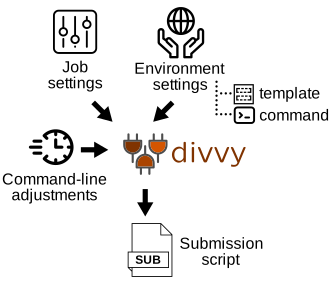
Once you have the above configured, you're ready to submit jobs! You can actually use divvy without using looper, to submit one-off jobs to a cluster. Divvy will take variables from a file or the command line, merge these with environment settings to create a specific job script.
In fact, there are several sources where information comes from. Divvy can incorporate variables provided in any of these sources:
- the command line, where the user provides any on-the-fly variables for a particular run.
- the PEP, which provides information on the project and samples.
- the pipeline interface, which provides information on the pipeline to run.
- the divvy config file, which provides information on the computing environment.
Let's walk through how this works.
You use divvy write.
Let's see what happens when we write a new script after selecting a compute package, but providing no variables:
divvy write --package slurmThis will write out the template, populated with whatever variables you provided (which in this case was nothing). By default, it will write to stdout:
Using divvy config: /home/nsheff/Dropbox/env/divvy_config/zither.yamlActivating compute package 'slurm'#!/bin/bash#SBATCH --job-name='{JOBNAME}'#SBATCH --output='{LOGFILE}'#SBATCH --mem='{MEM}'#SBATCH --cpus-per-task='{CORES}'#SBATCH --time='{TIME}'#SBATCH --partition='{PARTITION}'#SBATCH -m block#SBATCH --ntasks=1
echo 'Compute node:' `hostname`echo 'Start time:' `date +'%Y-%m-%d %T'`
{PRE_COMMAND}
{CODE}
{POST_COMMAND}
This gives us a way to view the SLURM template.
But, what we really want to do is populate those variables to make an actual script we can run or submit.
You can provide variables in several ways.
Divvy uses the same computing configuration arguments you can use with looper.
In fact, all looper does is take these arguments and pass them along to divvy, under the hood.
So, let's try populating a variable with the --compute argument:
divvy write --package slurm \ --compute jobname=my_sample_job cores=1You will see the {JOBNAME} and {CORES} variables are populated, but not the others:
Using divvy config: /home/nsheff/Dropbox/env/divvy_config/zither.yamlActivating compute package 'slurm'#!/bin/bash#SBATCH --job-name='my_sample_job'#SBATCH --output='{LOGFILE}'#SBATCH --mem='{MEM}'#SBATCH --cpus-per-task='1'#SBATCH --time='{TIME}'#SBATCH --partition='{PARTITION}'#SBATCH -m block#SBATCH --ntasks=1
echo 'Compute node:' `hostname`echo 'Start time:' `date +'%Y-%m-%d %T'`
{PRE_COMMAND}
{CODE}
{POST_COMMAND}
Sometimes it's more convenient to provide settings in through a file, instead of on the command line.
Create a file called myjob.yaml and pass this file using --settings:
jobname: my_custom_joblogfile: logs/my_job.logpartition: standardcores: 1mem: 2GBtime: "1:00:00"code: "echo \"Success! The job ran\""divvy write --package slurm \ --settings myjob.yamlAnd you will see that the output acknowledges the settings file, and is now populating all the provided variables:
Using divvy config: /home/nsheff/Dropbox/env/divvy_config/zither.yamlActivating compute package 'slurm'Loading settings file: myjob.yaml#!/bin/bash#SBATCH --job-name='my_custom_job'#SBATCH --output='logs/my_job.log'#SBATCH --mem='2GB'#SBATCH --cpus-per-task='1'#SBATCH --time='1:00:00'#SBATCH --partition='standard'#SBATCH -m block#SBATCH --ntasks=1
echo 'Compute node:' `hostname`echo 'Start time:' `date +'%Y-%m-%d %T'`
echo "Success! The job ran"
Now, we don't actually want to log the populated template to stdout, we want to create a submission script.
You can use output redirection with > (which works because the information text is actually being printed to stderr), or you can use the --outfile argument. These will do the same thing, allowing you to write a submission script from the command line:
divvy write --package slurm \ --settings myjob.yaml \ > submit_script.txtdivvy write --package slurm \ --settings myjob.yaml \ --outfile submit_script.txtOnce your script is created, you could inspect it and then submit it with sbatch submit_script.txt.
If you want to save yourself this final step, you can just use divvy submit to write the script and then execute it automatically (using whatever command is specified for the compute package submission_command):
divvy submit --package slurm \ --settings myjob.yaml \ --outfile submit_script.txtDivvy config variable adapters and built-in looper variables
Section titled “Divvy config variable adapters and built-in looper variables”We've covered how to construct submission templates and then populate them with variables using divvy.
There's one last thing we need to do to connect looper.
We have to provide a mapping between the template variables and their source.
Looper also provides a lot of built-in variables that we can use with our submission templates.
In the divvy examples above, we just matched them by specifying exactly the same variable name in our --settings or --compute arguments.
The default divvy templates use variables like {CODE}, {JOBNAME}, and {LOGFILE}.
But what if you want to use variables with different names, or add other variables?
How can you connect looper-provided information into these template?
To do this, we need more more step.
These variables are linked to looper namespaces via divvy adapters.
The adapters is a section of the divvy configuration file that provides a set of variable mappings that divvy uses to populate the submission templates.
This makes the connection with divvy and client software more flexible and more elegant, since the source of the data does not need to follow any particular naming scheme, any mapping can be used and adapted to work with any divvy templates.
Here's an example adapters section, added into the divvy config example:
adapters: CODE: looper.command LOGFILE: looper.log_file JOBNAME: user_settings.program.job_name CORES: processors_numbercompute_packages: default: submission_template: templates/local_template.sub submission_command: sh local: submission_template: templates/local_template.sub submission_command: sh develop_package: submission_template: templates/slurm_template.sub submission_command: sbatch partition: develop big: submission_template: templates/slurm_template.sub submission_command: sbatch partition: bigmemAs you can see in the example adapters section above, each adapter is a key-value pair that maps a divvy template variable to a target value.
Here are the default divvy adapters:
adapters: CODE: looper.command JOBNAME: looper.job_name CORES: compute.cores LOGFILE: looper.log_file TIME: compute.time MEM: compute.mem DOCKER_ARGS: compute.docker_args DOCKER_IMAGE: compute.docker_image APPTAINER_IMAGE: compute.apptainer_image APPTAINER_ARGS: compute.apptainer_args BULKER_CRATE: compute.bulker_crate PRE_COMMAND: compute.pre_command POST_COMMAND: compute.post_commandThe divvy adapters is a section in the divvy configuration file that links the divvy template variable (left side) to any other arbitrary variable names (right side).
The target values can use namespaces (nested mapping).
In fact, notice how the default adapters are using namespaces, like looper.<variable> or compute.<variable>.
These are variables that are provided by looper, automatically.
Looper provides a lot of really useful variables that you can use in your templates.
And, it also allows you to actually add your own variables through the submission hook system.
Let's go through what built-in variables you have available:
Looper variable namespaces
Section titled “Looper variable namespaces”To keep things organized, looper groups variables into namespaces. These namespaces are used first to populate the command template, which produces a built command. This command is then treated as a variable in itself, which is pooled with the other variables to populate the submission template. Looper provides 6 variable namespaces for populating the templates:
1. project
Section titled “1. project”The project namespace contains all PEP config attributes. For example, if you have a config file like this:
pep_version: 2.0.0my_variable: 123Then project.my_variable would have value 123. You can use the project namespace to refer to any information in the project. You can use project.looper to refer to any attributes in the looper section of the PEP.
2. sample or samples
Section titled “2. sample or samples”For sample-level pipelines, the sample namespace contains all PEP post-processing sample attributes for the given sample. For project-level pipelines, looper constructs a single job for an entire project, so there is no sample namespace; instead, there is a samples (plural) namespace, which is a list of all the samples in the project. This can be useful if you need to iterate through all the samples in your command template.
3. pipeline
Section titled “3. pipeline”Everything under pipeline in the pipeline interface for this pipeline. This simply provides a convenient way to annotate pipeline-level variables for use in templates.
4. looper
Section titled “4. looper”The looper namespace consists of automatic variables created by looper:
paths:
looper.output_dir-- parent output directory provided inproject.looper.output_dirin the project configuration filelooper.results_subdir-- the path to the results directory. It is a sub directory ofoutput_dircalledproject.looper.results_subdiror "results_pipeline" by defaultsample_output_folder-- a sample-specific or project-specific output folder (looper.results_subdir/sample.sample_name)looper.piface_dir-- directory the pipeline interface has been read fromlooper.pep_config-- path to the project configuration file used for this looper runlooper.log_file-- an automatically created log file path, to be stored in the looper submission subdirectory
non-paths:
looper.total_input_size-- the sum of file sizes for all files marked as input files in the input schemalooper.command-- the result of populating the command templatelooper.job_name-- job name made by concatenating the pipeline identifier and unique sample name
The looper.command value is what enables the two-layer template system, whereby the output of the command template is used as input to the submission template.
5. compute
Section titled “5. compute”The compute namespace consists of a group of variables relevant for computing resources. The compute namespace has a unique behavior: it aggregates variables from several sources in a priority order, overriding values with more specific ones as priority increases. The list of variable sources in priority order is:
- Looper CLI (
--computeor--settingsfor on-the-fly settings) e.g.looper run --config .your_config.yaml --package slurm --compute PARTITION=standard time='01-00:00:00' cores='32' mem='32000' - PEP config,
project.looper.computesection - Pipeline interface,
computesection - Activated divvy compute package (
--packageCLI argument)
So, the compute namespace is first populated with any variables from the selected divvy compute package. It then updates this with settings given in the compute section of the pipeline interface. It then updates from the PEP project.looper.compute, and then finally anything passed to --compute on the looper CLI. This provides a way to modulate looper behavior at the level of a computing environment, a pipeline, a project, or a run, in that order.
6. pipestat
Section titled “6. pipestat”The pipestat namespace consists of a group of variables that reflect the pipestat configuration for a submission.
pipestat.file- The pipestat results file.pipestat.record_identifier- record_identifierpipestat.config_file- config file pathpipestat.output_schema- output schema pathpipestat.pephub_path- path to PEP on PEPhub as destination for reporting results
Best practices on storing compute variables
Section titled “Best practices on storing compute variables”Since compute variables can be stored in several places, it can be confusing to know where you should put things. Here are some guidelines:
Partition or queue name
Section titled “Partition or queue name”Because the partition or queue name is relative to your environment, we don't usually specify this in the resources section, but rather, in the pepenv config.
DIVCFG config file
Section titled “DIVCFG config file”Variables that describes settings of a compute environment should go in the DIVCFG file. Any attributes in the activated compute package will be available to populate template variables. For example, the partition attribute is specified in many of our default DIVCFG files; that attribute is used to populate a template {PARTITION} variable. This is what enables pipelines to work in any compute environment, since we have no control over what your partitions are named. You can also use this to change SLURM queues on-the-fly.
Pipeline interface
Section titled “Pipeline interface”Variables that are specific to a pipeline can be defined in the pipeline interface file, compute section.As an example of a variable pulled from the compute section, we defined in our pipeline_interface.yaml a variable pointing to the apptainer or docker image that can be used to run the pipeline, like this:
compute: apptainer_image: /absolute/path/to/images/imageNow, this variable will be available for use in a template as {APPTAINER_IMAGE}. This makes sense to put in the pipeline interface because it is specific to this pipeline. This path should probably be absolute, because a relative path will be interpreted as relative to the working directory where your job is executed (not relative to the pipeline interface). This section is also useful for adjusting the amount of resources we need to request from a resource manager like SLURM. For example: {MEM}, {CORES}, and {TIME} are all defined frequently in this section, and they vary for different input file sizes.
Project config
Section titled “Project config”Finally, project-level variables can also be populated from the compute section of a project config file. This would enable you to make project-specific compute changes (such as billing a particular project to a particular SLURM resource account).
Resources
Section titled “Resources”You may notice that the compute config file does not specify resources to request (like memory, CPUs, or time). Yet, these are required in order to submit a job to a cluster. Resources are not handled by the divcfg file because they not relative to a particular computing environment; instead they vary by pipeline and sample. As such, these items should be provided elsewhere. The user can provide them at run time via the CLI:
looper run --package slurm --compute PARTITION=standard time='01-00:00:00' cores='32' mem='32000'