How to report images and complex objects
What you'll accomplish
Configure your pipeline to report image files and other complex objects to pipestat, not just simple values like integers.
Prerequisites
- Completed the pipestat tutorial
- Familiar with running project-level pipelines
Overview
When your pipeline generates an image or other complex object, you can report it to pipestat by defining the appropriate schema and using the pipestat API.
This guide walks through modifying the pipestat tutorial to run a project-level pipeline that creates and reports an image result. You can download the completed files from the hello looper repository.
Ensure you are in the pipestat_example folder from the previous tutorial or after downloading the folder from the hello looper repository.
cd pipestat_example
Next run the sample level pipeline so that the sample-level results are reported to the pipestat backend, results.yaml:
looper run
We would like to take the number of regions from each sample (file) and collect them into a single plot. This plot will be stored as an image locally, and the path of this image will be reported to the pipestat backend.
We will need to add a project_interface to the pipeline_interface:
pipeline_name: count_lines
output_schema: pipestat_output_schema.yaml
sample_interface:
  command_template: >
    python3 {looper.piface_dir}/count_lines.py {sample.file_path} {sample.sample_name} {pipestat.results_file} {pipestat.output_schema}
project_interface:
  command_template: >
    python3 {looper.piface_dir}/count_lines_plot.py {pipestat.results_file} {pipestat.output_schema}
We only need to pass the pipestat.results_file and the pipestat.output_schema to pipestat in this project-level example.
Next, we will modify the .looper.yaml config file to add a project name to the pipestat section. When running project-level pipelines with pipestat, we must supply a project name.
pep_config: ./metadata/pep_config.yaml # pephub registry path or local path
output_dir: ./results
pipeline_interfaces:
  - pipeline/pipeline_interface.yaml
pipestat:
  project_name: count_lines
  results_file_path: results.yaml
  flag_file_dir: results/flags
We will also need to modify the pipestat output schema to report an image result. This is a more complex object than our previous integer results. For example, it has required fields. Let's modify our output schema now:
title: Pipestat output schema for counting lines
description: A pipeline that uses pipestat to report sample level results.
type: object
properties:
  pipeline_name: count_lines
  samples:
    type: array
    items:
      type: object
      properties:
        number_of_lines:
          type: integer
          description: "Number of lines in the input file."
  project:
    type: object
    properties:
      regions_plot:
        description: "This a path to the output image"
        type: object
        object_type: image
        properties:
          path:
            type: string
          thumbnail_path:
            type: string
          title:
            type: string
        required:
          - path
          - thumbnail_path
          - title
path, thumbnail_path, and title.
Finally, we must create our pipeline. Create a python file in the pipeline folder named count_lines_plot.py:
import matplotlib.pyplot as plt  # be sure to `pip install matplotlib`
import os
import pipestat
import sys

# A pipeline that retrieves previously reported pipestat results
# and plots them in a bar chart
results_file = sys.argv[1]
schema_path = sys.argv[2]

# Create pipestat manager
psm = pipestat.PipestatManager(
    schema_path=schema_path,
    results_file_path=results_file,
    pipeline_type="project"
)

# Extract the previously reported data
results = psm.select_records() # pipestat object holds the data after reading the results file
countries = [record['record_identifier'] for record in results['records']]
number_of_regions = [record['number_of_lines'] for record in results['records']]

# Create a bar chart of regions per country
plt.figure(figsize=(8, 5))
plt.bar(countries, number_of_regions, color=['blue', 'green', 'purple'])
plt.xlabel('Countries')
plt.ylabel('Number of regions')
plt.title('Number of regions per country')

# Save the image locally AND report that location via pipestat
# we can place it next to the results file for now
save_location =  os.path.join(os.path.dirname(results_file), "regions_per_country.png")

plt.savefig(save_location, dpi=150)

result_to_report = {"regions_plot":
                        {"path": save_location,
                         "thumbnail_path": save_location,
                         "title": "Regions Plot"}}

psm.report(record_identifier="count_lines", values=result_to_report)
Looper passes the schema and results file to the pipeline. Pipestat then uses these items to create a PipestatManager object (psm) which can access the previously reported results.
Once we've plotted the results in a bar chart, we can report the location of the saved plot using pipestat. The structure of the reported image, regions_plot, is a nested dictionary and contains all the required fields from our modified pipestat output schema.
Make sure count_lines_plot.py is executable:
chmod 755 pipeline/count_lines_plot.py
If you run the project-level pipeline with the following command,
looper runp -c .looper.yaml, two things will happen, a regions_per_country.png should appear in your results folder:
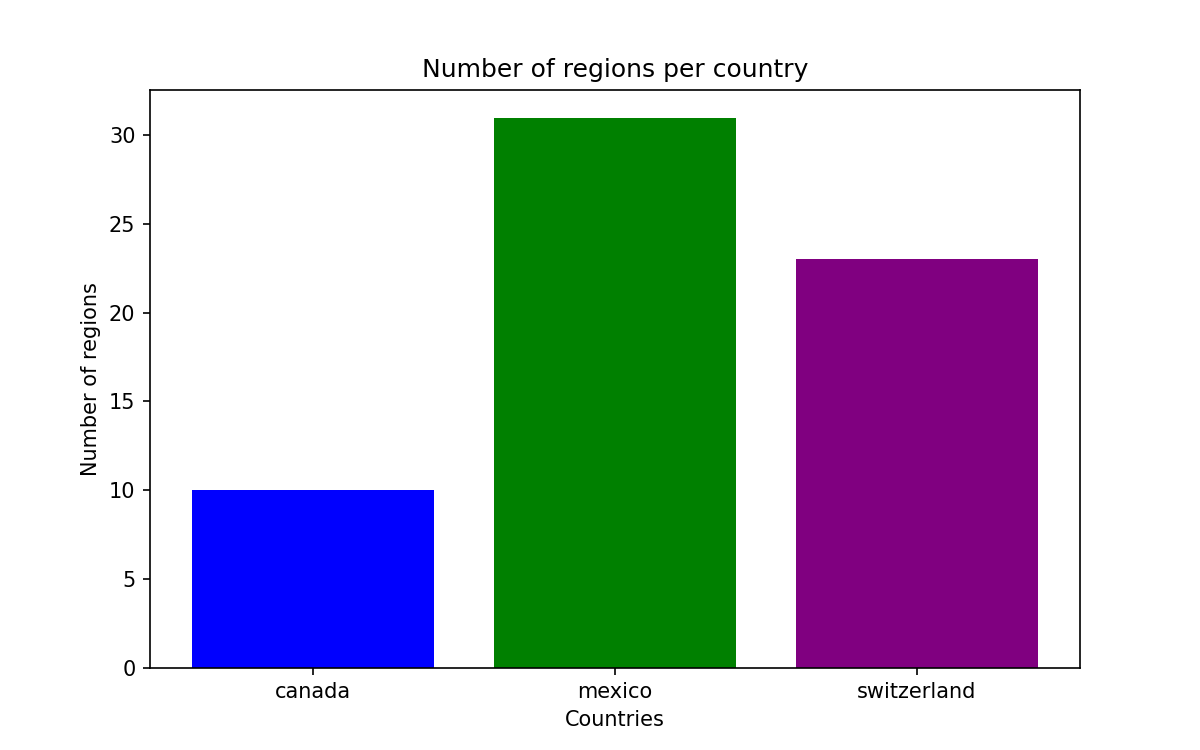
And the path to this image will be added to the results.yaml file as a reported result:
count_lines:
  project:
    count_lines:
      meta:
        pipestat_modified_time: '2024-09-19 15:36:38'
        pipestat_created_time: '2024-09-19 15:36:38'
      regions_plot:
        path: /home/drc/GITHUB/hello_looper/hello_looper/pipestat_example/./results/count_lines/regions_per_country.png
        thumbnail_path: /home/drc/GITHUB/hello_looper/hello_looper/pipestat_example/./results/count_lines/regions_per_country.png
        title: Regions Plot
  sample:
    mexico:
      meta:
        pipestat_modified_time: '2024-09-19 15:36:33'
        pipestat_created_time: '2024-09-19 15:36:33'
      number_of_lines: 31
    switzerland:
      meta:
        pipestat_modified_time: '2024-09-19 15:36:33'
        pipestat_created_time: '2024-09-19 15:36:33'
      number_of_lines: 23
    canada:
      meta:
        pipestat_modified_time: '2024-09-19 15:36:34'
        pipestat_created_time: '2024-09-19 15:36:34'
      number_of_lines: 10
Your pipeline now reports complex objects to pipestat. The same pattern works for other object types defined in your output schema.